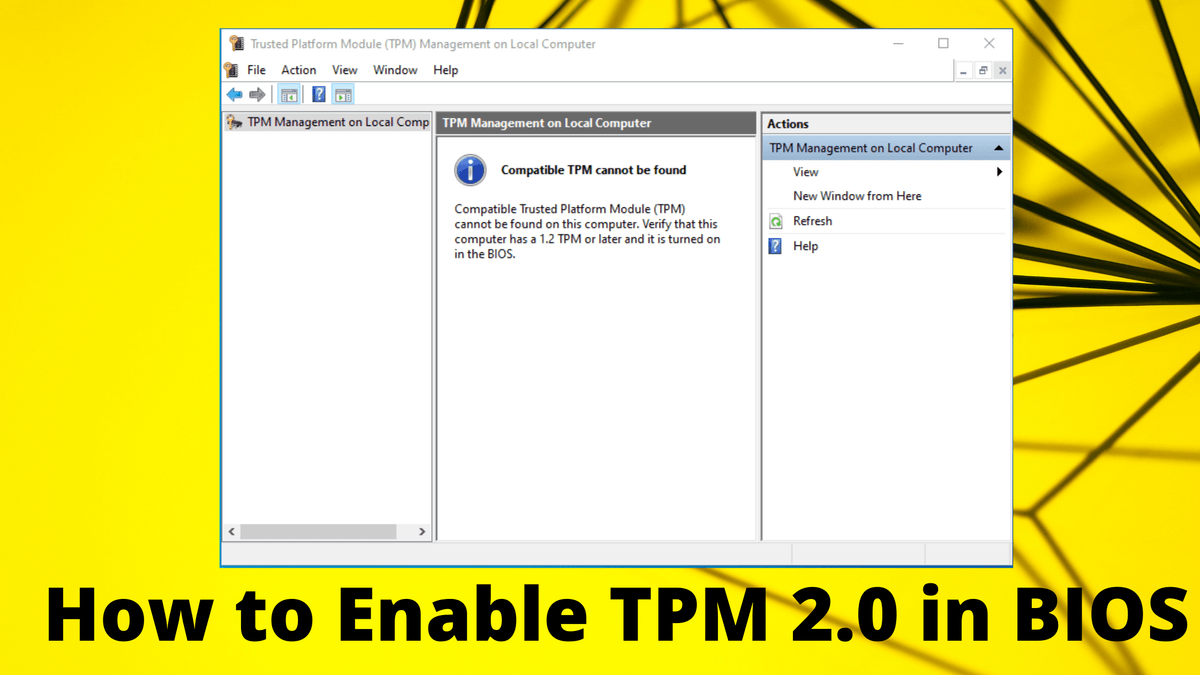
The Trusted Platform Module (TPM) is an electronic chip made of temper resistant silicone that is attached to the motherboard. It is usually designed to create, store, and secure encryption keys. It is built-in to your device, which does not mean that it is enabled by default. If it is not enabled then you will not be able to use features like BitLocker for Windows 10 or Windows 11. You must enable it for this.
This article is intended for users who are unable to upgrade to Windows 11 because their pc is not enabled with current TPM 2.0 or their pc is able to run TPM 2.0 but is not set up for it. If you have not enabled TPM 2.0 then you can easily enable it on your PC through this article.
Many PCs are capable of running Trusted Platform Module 2.0 (TPM 2.0). TPM 2.0 is an important building block for security-related features required to run Windows 11. TPM 2.0 is used for many of the security features of Windows 11, including Windows Hello for identity protection, BitLocker for data protection.
In some cases, PCs capable of running TPM 2.0 do not have this setup. If you want to upgrade to Windows 11, you must enable it. Follow the methods below to check if your PC has TPM 2.0 enabled


Method 1: Use the Windows Security app
- Go to Settings > Update & Security > Windows Security > Device Security
Method 2: Use the Microsoft Management Console
- Press
+ R or select Start > Run. - Type “tpm.msc” (do not use quotation marks) and choose OK.
How to Enable TPM 2.0
- If you need to enable TPM then you need to manage settings in UEFI BIOS (PC firmware). You can access these settings from: Settings> Update & Security> Recovery> Restart now.
- On the next screen, go to Troubleshoot> Advanced options> UEFI Firmware Settings> Restart to make the changes. These settings are sometimes contained in a sub-menu in the UEFI BIOS labeled Advanced, Security, or Trusted Computing. The option to enable the TPM may be labeled Security Device, Security Device Support, TPM State, AMD fTPM switch, AMD PSP fTPM, Intel PTT, or Intel Platform Trust Technology.
- Open the security settings page.
- Select the Trusted Platform Module (TPM) option and press Enter.
- Select the Enabled option and press Enter.
- Exit the UEFI settings.
- Confirm the changes to restart the computer.
Need a genuine licence key?
Shop licences