

Microsoft Visio 2024 Professional is one of the most effective diagramming and visualization tools for diverse users, including professionals, manufacturers, healthcare, and IT teams. With a modern interface, improved performance, and a perpetual licensing model, Visio 2024 remains a reliable diagramming tool in 2026. This article provides a step-by-step guide on how to download, install, and activate Microsoft Visio 2024 Professional, including system requirements and troubleshooting tips.
Table of Contents
- 1 What is Microsoft Visio Professional 2024?
- 2 System Requirements for Microsoft Visio Professional 2024
- 3 What You Need to Know Before Downloading Visio 2024 Professional
- 4 How to Download Microsoft Visio Professional 2024, Install & Activate?
- 5 How to Check the Activation Status of Microsoft Visio Software?
- 6 Troubleshoot Common Issues
- 7 Tips to Effectively Use Visio Professional 2024
- 8 Final Words
- 9 FAQs
What is Microsoft Visio Professional 2024?
Microsoft Visio 2024 Professional is the latest diagramming software for professionals, IT teams, and businesses. It helps users to create:
- Professional diagrams with ready templates and shapes
- Create industry-standard diagrams, such as BPMN 2.0 and UML 2.5
- Generate database visualizations with pre-built database model diagrams
- Improved collaboration within Visio
- Link diagrams to the live data from internal and external sources.
System Requirements for Microsoft Visio Professional 2024
To install Microsoft Visio 2024, your device must have the following system requirements:
- Operating System: Windows 10, 11, Windows Server 2019
- Processor: 1.6 GHz or faster with 2 cores
- RAM: 4GB (64-bit) and 2GB (32-bit)
- Hard Disk Space: Available space 4GB or higher
- Display: 1280×768 screen resolution or better
- Graphics: DirectX 10 or higher graphics card
- Additional System Requirements: a Microsoft account and internet access
What You Need to Know Before Downloading Visio 2024 Professional
When you want to download Visio 2024, keep these essential things in mind:
- Visio 2024 is available in both perpetual and subscription licenses, so check which one you want to purchase.
- This version can be activated with a retail license key or bind key; make sure which type of license you have.
- Check your device system requirements before downloading it.
- To remain safe from all kinds of issues, download Visio 2024 Professional from Microsoft.
How to Download Microsoft Visio Professional 2024, Install & Activate?
Downloading Steps
- Purchase a valid Visio 2024 Professional key from a trusted, authorized Microsoft partner, such as Softkeyworld.
- Open a browser, and type setup.office.com to sign in with your Microsoft account.
- If you don’t have an account, create one immediately.
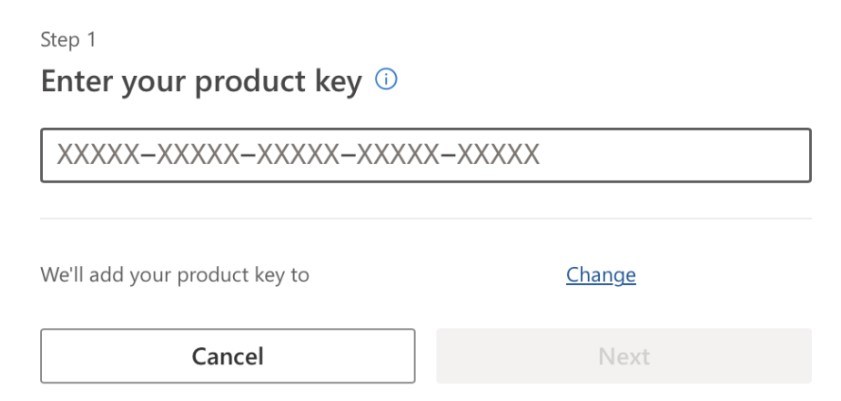
- After signing in to your MS account, a product key pop-up will open. Enter your product key and click Next to go to the download page.
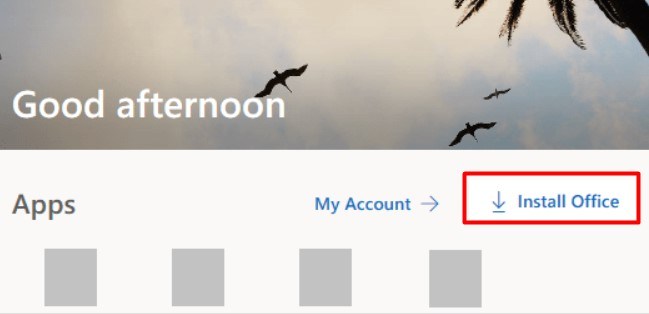
- When you reach the Microsoft Homepage, you see something like the image below. So, click on Install Office.
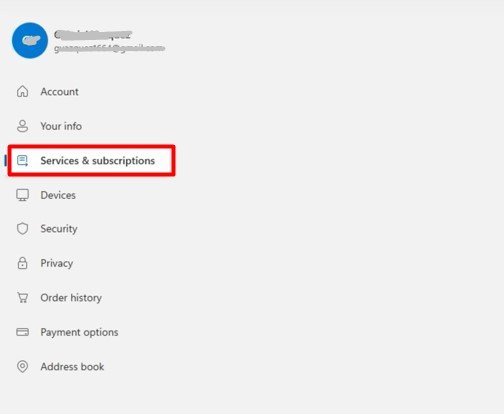
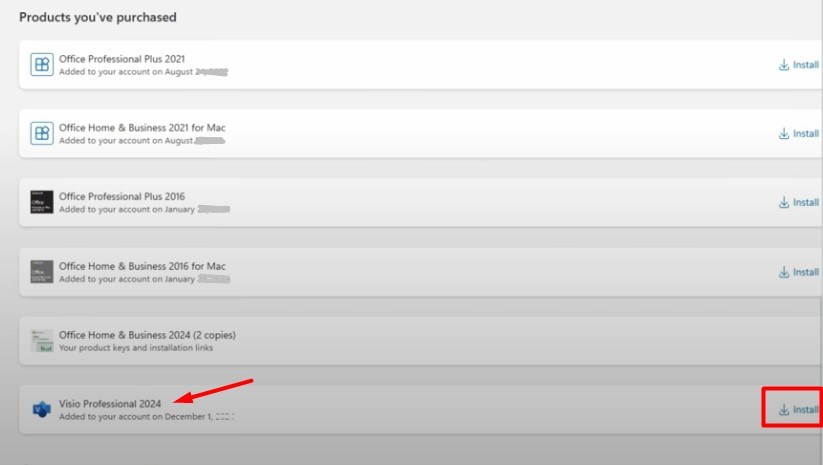
- On the Microsoft account dashboard, click on Services & Subscription in the top-left menu and find Visio 2024 Professional.
- Click on Install, and it will automatically start the downloading process.
How to Install
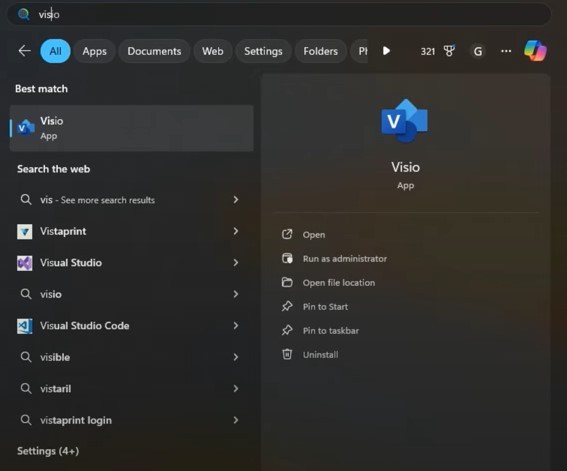
- When the download is completed, open it and allow the installation to run.
- Wait a while to complete the installation and find it on the Start Menu.
How to Activate MS Visio 2024 Professional?
- When you open Visio 2024 Professional after installing it, sign in with the account you used to redeem the license.
- With the sign-in process, activation will happen automatically.
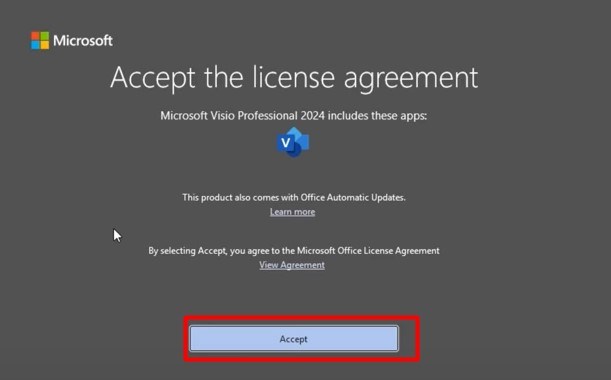
- Now, you can use Microsoft Visio 2024 on your device without any restrictions.
How to Check the Activation Status of Microsoft Visio Software?
To check the activation status of Visio 2024 Professional, follow these steps:
- Open the Visio 2024 Professional application.
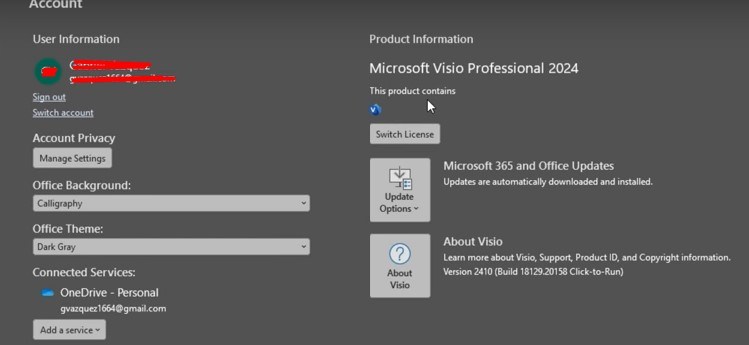
- Go to the File > Account.
- On the right side, check Product Information. If it shows This Product Contains Visio 2024 Professional, your product is correctly activated.
Troubleshoot Common Issues
- Downloading Issues: When encountering an issue during the download, confirm your internet connection is stable or disable the firewall or VPN that can obstruct the download.
- Installation Fails: If your installation fails frequently, make sure your device fulfills the system requirements.
- Activation Problem: Ensure using the right product key with the correct Microsoft account. If the issue persists, feel free to contact Softkeyworld for free technical support.
- Compatibility Issue: Download the compatible 32-bit or 64-bit Visio 2024 versions for your device; it shows a compatibility issue.
Tips to Effectively Use Visio Professional 2024
- Ensure better security and performance when working with large or complex diagrams, and enable automatic updates.
- Use built-in templates and shapes that save time and increase productivity.
- Share diagrams with your team members and edit in real-time to maintain work quality.
- Integrate with Microsoft 365 that connects with Word, Excel, or other Microsoft applications for better work efficiency.
Final Words
Microsoft Visio Professional 2024 remains an ultimate diagramming solution for diverse users in 2026. By following the above steps, you can easily download, install, and activate Visio 2024 Professional. Use only genuine license keys from Microsoft’s official website or a trusted reseller, like Softkeyworld, to experience full functionality and regular updates.
FAQs
1. Is Visio Professional 2024 a perpetual license or subscription?
You can buy lifetime licenses or subscribe to Visio Plan 1 or 2 from Microsoft. However, Softkeyworld only offers a perpetual license for Visio Professional 2024.
2. Can I use the Visio 2024 Professional software on a Mac?
No. Microsoft Visio 2024 Professional is built for Windows OS, but Mac users can use it via Microsoft 365.
3. Is Visio 2024 independent to use?
Yes. Microsoft Visio works independently, or you can use it on Microsoft 365 as well.